Tuesday, March 31, 2015
#48 10 websites and applications you must know about
This summary is not available. Please
click here to view the post.

#47 Microsoft launches Project Spartan for Windows 10 Technical Preview
Windows 10 Tech Preview build 10049 includes Project Spartan, the company's new browser.
Microsoft has rolled out its “Project Spartan,” the new browser for Windows 10, for the latest Windows 10 Technical Preview build for PCs. The new browser brings a slew of new features, interface and integration with digital assistant Cortana.

“In this preview, you will see a bold new design for Project Spartan – one that is streamlined and puts the focus on the page, not the browser. This is part of our vision for a browser that doesn’t visually interfere with your life on the Web, but supports it. You will also see some of the features that we demo’ed back in January and we hope you’ll love them,” points out Microsoft in a detailed blog post.
As said above, Project Spartan brings Cortana integration. The personal assistant provides additional information while making browsing easier, staying in the background. It comes with inking capabilities, enables you to write or type directly on the page, comment on what’s interesting or clip what you want – then easily share this “Web Note” via mail, or a social network. The Spartan features a new rendering engine is built around the idea that the Web “just works,” while being faster, more secure and more reliable.
“It’s important to note we’ll have more features and many improvements coming to Project Spartan before we make it broadly available. This preview is NOT a polished, ready-for-everyone release. For Windows Insiders, we’re excited to make Project Spartan available for your feedback, only a short time after we made it available for use internally at Microsoft,” points out Microsoft.
Meanwhile, Windows 10 Technical Preview Build 10049 is now available. The latest build includes a slew of fixes along with Project Spartan.
Friday, March 27, 2015
#46 About the new 12-inch Apple MacBook
Apple announced the all new MacBook yesterday. It is not a replacement for the MacBook Air or the MacBook Pro, the new MacBook is an addition to the line of MacBooks, targeted at users looking for a compact, slim and light laptop with an ultra high resolution display. The new MacBook has a lot of segment firsts in terms of specs, features and design elements, so let's take a look at what the MacBook is all about. The new Apple MacBook starts at 1299$, yes, that is a lot!

Core components
Let’s start with the basics. The new MacBook will be powered by an Intel Core M chip (14nm Broadwell platform). The Intel 1.1 GHz Core M processor used in the MacBook is made for hybrid devices and high performance tablets with fanless design, employing passive cooling techniques. The graphics on the MacBook is handled by Intel HD Graphics 5300, a very basic GPU that sits at the bottom of the latest Intel Core platform. The laptop comes with 8GB RAM by default and gives a choice between 256GB or 512GB of PCIe based flash storage.
Design
The new MacBook looks and like an extended version of the MacBook Air. Just that it's a lot thinner, smaller and lighter while offering the same unibody design. The laptop boasts a mere 13.1 mm in width and weighs 0.92Kg. This easy to carry laptop will be available in three colours: Silver, Gold and Space Gray. Just to put things in perspective, the MacBook Air 13 weighs 1.35 kilograms and is 17mm thick.

Build
The unibody MacBook is made out of machined aluminum, promising the same strength and durability as the MacBook Air and MacBook Pro. Though, we'd reserve our judgment on the overall build quality till we review the device.
Display
Apple has squeezed a 12-inch display in a smaller 11.04-inch chassis. The 12-inch display boasts of 2304 x 1140 pixel resolution. It is a 16:10 aspect display, just like the MacBook Air and Pro screens. Apple claims to have achieved higher brightness levels while keeping the power consumption down by increasing the aperture of each pixel. Again, a claim that we shall surely test before believing it.
Keyboard
The new MacBook features a 'butterfly-style' keyboard mechanism, promising even feedback and response across the entire surface area of each key. Each key on the keyboard is illuminated by dedicated LED underneath every key, promising precise backlighting.
The 'Force Touch' trackpad
Apple has redesigned its glass trackpad, adding a haptic engine, which will send a tangible haptic feedback to the fingertips of users when they perform certain tasks. The touchpad now features Force touch sensors which will not only take into account a ‘tap’ but the pressure of the ‘tap’ as well.
Ports? What Ports? We just have a port! Wireless & USB Type-C
With the new MacBook Apple is among the first companies to adopt the USB Type-C port. The laptop sacrifices all other regular ports like power, USB, Display, HDMI, VGA, for a single USB Type-C port. Apple is betting big on the use of wireless and customers would be required to buy suitable accessories. A headphone jack is included though. Seriously, just one part might turn off even the most hardcore Apple fan, especially when the port extending accessories cost you a bomb!
Smallest custom Motherboard, 'logic board' in Apple's words
The new MacBook has one of the smallest motherboard ever developed. This was partly possible because of the tiny 14nm power efficient Intel Core M chip which does not require a fan to keep it cool. Besides saving space on the rotating fan, the moatherboard itself has been custom designed with the highest density of components ever on a piece of PCB. The downside? If something fries, you gotta replace the entire logic board, you can safely forget about getting this baby repaired!
Battery
The tiny motherboard was a deliberate attempt to levy a lot of space in the tiny chassis for battery packs (or shall we call them slices?). Apple has used a custom terraced battery cell over the traditional rectangular battery pack. Apple claims that the new design helps in 35% more battery capacity. Well, you certainly need all the wizardry to power that pixel monster 12-inch screen. So, yeah, a necessity rather than a fad. And, after all this, the MacBook promises 8-10 hour battery life, the same as the MacBook Air and MacBook Pro. Nothing exceptional, we'd say!
OSX
The traditional operating system of choice MacOS is present here as well. The new OS, which was recently updated is highly integrated with iOS. OSX is easy to use and features many productivity apps.
Accessories
Since the MacBook features a single USB Type-C port, there already are half-a-dozen accessories available to extend its capabilities. Apple will be broadening this list further.
Apple also updated 13-inch MacBook Pro
Alongside the MacBook, Apple has silently updated the 13-inch MacBook Pro as well, which is getting the new fifth-gen Intel Core processors (up to 3.1GHz), Intel HD 6100 graphics, faster flash drive storage with option 10 to 12 hours of battery life. The laptop is also getting the Force Touch Trackpad. The updated 13-inch MacBook Pro already has India pricing, it starts at Rs. 94,900.
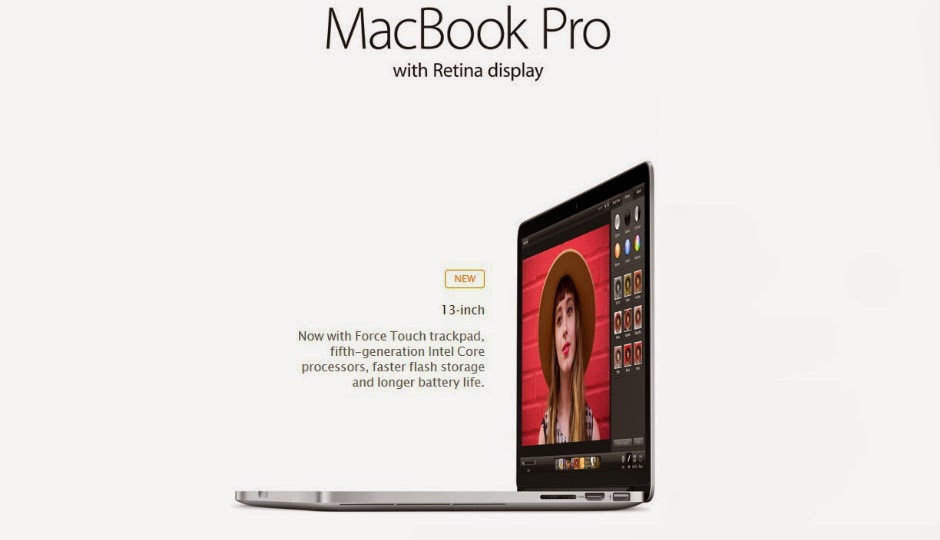
And, the MacBook Air also gets a tiny refresh. Both MacBook Air, 11-inch and 13-inch are being updated with fifth gen Intel core processors (up to 2.2GHz), Intel HD Graphics 6000 and thunderbolt 2 ports. Out of the two the 13-inch model gets refreshed with faster flash memory chips too. The Indian pricing for the updated MacBook Air starts from Rs. 65,900.
#45 Apple planning to launch three new iPhone's this year
iPhone 6s, iPhone 6s Plus and a 4 inch iPhone are slated for release in 2015, unlike what Apple has done ever before.

Apple is planning to release three new iPhone models in 2015, according to reports. The Cupertino-based technology giant is working on the 4.7 inch iPhone 6s, a 5.5 inch iPhone 6s Plus and a new 4-inch iPhone model, which will all be launched later this year.
According to reports, Apple is working on two successors to the iPhone 6 and iPhone 6 Plus, named iPhone 6S and iPhone 6S Plus. In addition, Apple is also working on a 4 inch model called the iPhone 6C.
Rumors suggest that all three devices will be equipped with LTPS panels from Japan Display, LG for the 6S models and Sharp for the iPhone 6C model. The two 6S variants will be powered by an Apple A9 chip, while the 6C will have the A8 chip found in current models.
Other specifications reported for the iPhone 6S include 2GB of LPDDR4 RAM. All the three devices will come with Corning Gorilla Glass protection and inbuilt NFC and fingerprint scanning technology. According to reports Wistron may be in charge of manufacturing the 6C units, while the rest will be developed by Foxconn Electronics (Hon Hai Precision Industry) and Pegatron.
Apple's CEO Tim Cook had stated that the new, larger iPhone models had record sales and brought the highest Android switcher rate over in the past three years. It's possible that Apple now plans to offer more sizing options to customers to further improve iPhone sales, as Cook also mentioned different regions preferred different screen sizes.
The new iPhone models are expected to be launched in September, with Apple's new Force Touch technology, that was introduced in the Apple Watch, the new MacBook and new 13-inch MacBook Pros.
Sunday, March 22, 2015
#44 Google claims its 'FaceNet' system is 99.96% accurate
Google's advanced facial recognition system is nearly a 100 percent accurate and can recognize a face from a 260 million image database.

Google researchers claim that their artificial intelligence system FaceNet, is one of the most-accurate ways of identifying human faces. The researchers claim that the system is accurate 99.6% of the time.
The Google researchers, Florian Schroff, James Philbin and Dmitry Kalenichenko say that their system achieved a new record accuracy of 99.63 per cent on Labeled Faces in the Wild (LFW) dataset Researchers state, 'Our method uses a deep convolutional network trained to directly optimize the embedding itself, rather than an intermediate bottleneck layer as in previous deep learning approaches.'
To train, we use triplets of roughly aligned matching / non-matching face patches generated using a novel online triplet mining method. The benefit of our approach is much greater representational efficiency: we achieve state-of-the-art face recognition performance using only 128-bytes per face. On the widely used Labeled Faces in the Wild (LFW) dataset, our system achieves a new record accuracy of 99.63%. On YouTube Faces DB it achieved 95.12 per cent. Our system cuts the error rate in comparison to the best published result by 30 per cent on both datasets," the paper claims.
Google's FaceNet and Facebook's 'DeepFace' technology will help in automating the process of tagging photos and searching for people and will also make it easier for web companies to analyze their users' social networks and to assess global trends.
Last year, Facebook researchers claimed that humans analyzing images in the Labeled Faces dataset are only able to achieve 97.5 percent accuracy. Aside from Google , Facebook, and other tech giants including Microsoft, Baidu, and Yahoo are also investing in deep learning research, according to reports. The US Department of Defense's research agency DARPA, has also been working on deep learning techniques to help understand communications crossing intelligence networks.
Friday, March 20, 2015
#43 How to Use SkyDrive
Cloud computing means using off-site computer infrastructures that can be leased or freely used to provide for computer requirements of individuals and organizations. That infrastructure includes all resources of an in-site computer facility; that is, processors, physical memories (RAMs) and storage known as drives.
It helps, as is believed, to reduce costs of maintenance and upgrading of in-site facility lower on the idea of use it when you need and use it more when you need more.
Moreover, you are not attached to your fixed IT facilities and can have access to required resources on the go: on a variety mobile device operating systems, and smartphones. One part of those resources, drives, comes to be more handy for individual users. Microsoft SkyDrive is among the most important ones.
STEPS
Step 1:
Sign in using your Microsoft account.
- If you do not have an ID, one free will be offered to you to sign up and join. Just go to windows.live.com Windows Live
Step 2:
Select your desired ID. In the next stage you have the option to choose your ID.
- That could be at the "live dot", "outlook dot" or "hotmail dot" followed by your country URL extension. In the US it follows by "com" only.
Step 3:
Follow a simple procedure to finish getting your ID.
- Now you are in your personal "outlook" page.
- Small dialogue shows finishing update. At any time you can launch SkyDrive by Clicking on "Open your SkyDrive folder."
Step 4:
Look at the range of services available.
Step 5:
Go to top left corner "Outlook"
- From the drop down menu, select "Skydrive"
Step 6:
Observe that it immediately creates your sky drive on the cloud.
- You have a place holder for your personal documents, pictures and public items. At the top there are options for creating on-line (that is, on-cloud) Office documents for productivity. Please also refer to Back Up Your Important Files Using Hotmail SkyDrive.
- Click on the "Get SkyDrive apps"
Step 7:
Look at the different flavours of SkyDrive available for different devices.
- That helps you to have access to your cloud storage on the SkyDrive from different pieces of the device you might use at any place.
- In the next stage click on "Download the desktop app."
Step 8:
Look at the bottom of your Browser.
- Allow the install to "Run."
- Installation proceeds.
Step 9:
Click on "Get Started" button.
- Fill the form according to your acquired Microsoft Account.
Step 10:
Note that the "cloud hard disk" has been installed on your computer.
- There is no need to change its location on a safer place in your computer. No failure on your computer will touch that drive; unless you delete its contents.
Step 11:
Click on "Next" button
- Update your other device pieces in sharing SkyDrive.
Step 12:
Click on "Done" button.
- Your SkyDrive is on your device.
Step 13:
Click on the small caret on the quick launch.
- It shows the hidden icons; among them SkyDrive icon. Moving the green line means SkyDrive being updated.
Step 14:
Utilize your SkyDrive to share and team work.
- Among your documents you have a place for "Public" files. Put some files there. Open the "Public" to see them. In the Demo picture, there are two files.
- One is actually SkyDive executable file that you can download and run to install SkyDrive. In the demo it is shown to the reader that it is even possible to upload exe files in the SkyDrive. It is important for the team works to have such a capacity for beta testing and other purposes.
- Another file is just a notepad. It is a draft of this article to back it up.
- Select this one by ticking the box in front of its name. If you like to embed it in your Blog or other Internet pages, click on "Embed" on the right side pane to get the embedding HTML code.
- If you like to share it, then click on "Share" in the right side panel.
Step 15:
Look at the widget that opens. It has different options.
- You can send an email as a link to this file.
- You can post it to Facebook or Tweeter or LinkedIn.
- A sharing link could allow people only "View" your file without being able to modify it.
- A sharing link could allow both "View" and "Edit" of the file.
- Besides, being a "Public" file allows people to search it and if found through the Internet search engines to be viewed by the public. You can put your file in non-public folders if you want it to be of access of you-only or you and your team-only.
- For any reason, you can shorten the link address to be more digestible, by clicking on the "Shorten" button. You can put that address in your browser right now and find out a draft of this article.
Thursday, March 19, 2015
#42 How to Prevent Identity Theft
In 2012, there were 12.6 million cases of identity theft in the US alone, an increase of over one million people since 2009. And if that's not enough to worry you, the San Diego based Identity Theft Resource Center has calculated that it takes about 600 hours to restore your reputation after identity theft. While people are getting better at recognizing identity theft, and minimizing the damage, the best solution is to prevent it from happening in the first place by following these steps.
Method 1: Strengthening Your Digital Security
Step 1:
Choose good passwords and PINs. Choose words and numbers that no one would be able to guess even if they were privy to other parts of your personal information. Or, use words and numbers that are familiar to you, but disguise them in a hard-to-guess code, like the Vigènere Cipher. There are even randomly-generated password programs online that will provide virtually unbreakable, or uncrackable passwords. Other good habits to get into include:
- Don't use the same password for all of your accounts. Vary the passwords from account to account.
- Avoid easily guessed PINs like birth dates, common numerical sequences, phone number, the last four digits of your social security number, etc.
- Good passwords will include capital and small letters, numbers and characters, and be at least 8 characters long.
- Never store passwords or sensitive information on your computer. All computers are hackable. If you need to keep this information digitally, store it on a CD or in an external hard drive that is only attached to the computer for offline backups (turn off your internet connection when making backups).
- For more ideas, read How to Keep Your Debit Card Number (PIN) Safe.
Step 2:
Protect your computer. Many identity thieves now use complex software such as spyware and keyloggers to obtain sensitive information such as passwords and login details without the user's knowledge. Just because you can't see anything wrong with your computer doesn't mean that it is safe to use. Unlike viruses and adware, many spyware and keylogger programs are designed for stealth, so that they can gather as many passwords and sensitive data as possible. A strong and regularly updated firewall, anti-virus program and anti-spyware program will provide most of the protection an individual needs.
- If you're not sure what is best for your computer, contact your local computer retailer for advice.
Step 3:
Beware phishing scams. Phishing involves seemingly harmless emails being sent to you, asking you to verify certain things such as passwords, account numbers or credit/social security details. Any email seeking this sort of information should be an immediate red flag for you. The best response is to contact the service provider directly and ask what's up.
- If you get an e-mail claiming to be from your bank that tells you to check or update your information such as a password (for any reason), do not use the link in the e-mail, even if the e-mail letterhead/background looks like it came from your bank. If you think the email is real, log on directly to the company or bank's website and check your records there; if there are no changes, you just avoided being scammed. This type of scam is known as a phishing scam and there are several forms. (You can also call your bank to verify––use the bank's actual Yellow Page contact number, not any numbers provided in the email.)
- Other phishing scams include false lottery wins, requests for money to "help" people who have lost money/tickets/house, etc. and claims from Nigerian princes on-the-run.
- Check the website of your country's government department that is responsible for updating on regular scams (consumer affairs and security agencies usually); many even have regular emails with such updates to keep yourself forewarned. Some non-profit consumer watchdog agencies and consumer-safety oriented TV shows will also have similar information available online.
Step 4:
Don't accidentally on-sell or give away your identity details. When you get rid of your computer, be sure to wipe out all of your information first. Ideally, restore it to the factory settings––this will usually be explained in the manual that came with your computer or can be found doing an online search. If you're not sure how, take it to a reputable retailer who specializes in computers and ask for help.
- A tech savvy person can even recover information that has been deleted from a hard drive. Free scrubbing programs can be downloaded online, or ask your trusted computer retailer or tech-savvy friend to help.
Step 5:
Take care when shopping online. Always check the security symbols when using an online site for shopping. If the lock icon encryption is not there, do not give out credit details. Also, check that the site is legitimate––never go to a site from a random email and start purchasing. Go to the site through a known URL or by searching for it on a search engine first.
- Keep a separate credit card just for online purchases. This will make it easier to cancel if something bad does happen and your other credit card for "in real life" can still be used unhindered.
- Don't store information on any store's website. It may be convenient, but it's also a possible loss to you if the site is hacked.
Step 6:
Never answer unsolicited or unwanted emails. Even if you're joking, the return email verifies your existence to the would-be scammer and it's just better off that they think their attempt to get to you disappeared into the ether.
- Avoid opening emails that don't make sense to you or that come from people or organizations that you don't recognize. Viruses or worms can be hidden in emails. Be doubly suspicious if the email ends up in your spam folder. And always have your virus protection updated and turned on.
Method 2: Staying Alert When Out and About
Step 1:
Watch out for "shoulder surfers." That person behind you in line at the ATM or the supermarket may just be another shopper, or they could be paying close attention to you in hopes of seeing your account balance or PIN. Shade the monitor area with your hand when typing in your PIN and try to block others’ view of the screen. It's even a good idea to do this when no one is around; some thieves use binoculars or install cameras so they can watch you from far away.
- More automatic cash dispensers are now adding shields to assist you. Use the shield as one defense, while still cupping your hand over the keypad as you key in the numbers.
- You may feel silly shielding your numbers. But think of this––you'll feel even sillier if someone swipes your PIN.
Step 2:
Watch what you carry. We often carry a lot of identifying information in our wallet or purse. And if that should get stolen, it is easy for someone to use that information to their advantage, and quickly. Here are some precautions to take:
- Don't carry credit cards (or anything that can be used like a credit card, such as a debit card with a VISA logo). Not only will this severely limit the damage that a thief can do, but it is also a useful budgeting practice. If you must carry credit cards, try to carry only one, and write "SEE ID" next to your signature on the back.
- Change all your credit cards with a PIN only option, if possible. That way, if anyone does steal your credit card, they'll need to know the PIN to operate it if purchasing anything in stores. To avoid online usage, never carry address identification in your wallet. You can use an email or cell phone number for "return to owner" requests.
- Don’t carry extra check (cheque) blanks, your passport, or any other ID that you are not planning to use that day. If you must carry such identification, consider placing it in a security bag worn on the body if there is any likelihood of someone swiping it.
- If in the USA, never carry your Social Security card (or any cards that have your social security number on them) with you unless you are going somewhere where it will be absolutely necessary.
Step 3:
Carry your wallet or bag safely. Even if you live in a safe area, opportunism can cause you lose your wallet or bag. There are ways to help discourage theft of your wallet or bag, wherever you are.
- Never leave your bag or purse unattended. If you grocery shop, never get into the habit of placing your bag in the shopping cart or trolley. Even if you stay with the cart, a thief can snatch the bag when you reach up or bend down to get a product and take your eye off the bag. Trust isn't about testing your entire community's willpower!
- Never leave your wallet or purse in a jacket or coat pocket that is hanging on the back of a cafe or restaurant chair. This unattended item is all too easy to swipe.
- If you use a purse or a single strap bag, wear it across your body, so it can't easily be yanked right off your shoulder.
- If you carry a wallet, you might consider attaching it to your body with a chain or bungee cord. You can also Make a Mugger's Wallet, which is a decoy wallet that you can give to a thief if you should get mugged. This is an extreme measure, suitable if you live or travel to areas where there are known theft problems.
- Be prepared for if your wallet should get stolen. Read How to Deal With Losing Your Wallet so you know what to do, and can do it quickly. The sooner you can cancel the cards, the less damage there will be.
Method 3: At-Home Security
Step 1:
Shred any documents with identifying information on them. Don’t just throw your old billing statements and other documents containing important information into your garbage. There are "Dumpster divers" who are willing to wade through old coffee grounds and rotten orange peels to get their hands on your data. Invest in a crosscut paper shredder and completely destroy any piece of paper that has your credit card number, your social security number, or your bank account number on it.
- If you get a shredder, make sure it’s one which doesn’t just create strips of paper which can be pieced back together. If you don’t get a shredder, at least tear the materials into small pieces. When using this strategy, some believe in a two-bag approach. They will place half of the remains of a torn document in one rubbish bag and the other half in a different trash container in the home (or, if you have a compost bin, mix part of it in with your compost).
- Be sure to shred pre-approved and other credit offers (like when they send you blank checks) - don't just toss in the trash. Many thieves will use offers to apply for credit in your name at a different address, and will try to use any checks. Better yet, call your credit card companies and request that they not send cash advance checks in the first place. Phone the opt-out number to stop receiving credit card offers.
Step 2:
Protect your snail mail. The mail transports millions of pieces of personal information every day and is one of the most common sites for identity theft activity. A study found that the most frequently used non-technological method of identity theft was the rerouting of mail through change of address cards! So pay attention to your mail.
- Make sure you get all of your billing statements on time. If you have a mailbox that others can access easily, consider getting a high security locking mailbox or consider getting a post office box instead. Also check your mail frequently so no one gets to it before you do.
- Most banks offer "paperless" statements via email or smartphone. If your bank offers this service, consider signing up to lessen your risk.
- If you are expecting a new credit card in the mail and it hasn't turned up within the time the bank has specified, contact the bank immediately. Better still, ask the bank to require you to collect the card in person instead of having it mailed out.
Method 4: Freezing Credit as a Safety Precaution
Step 1:
Get a security freeze on your credit. In the United States, you can contact each of the three major credit agencies (Transunion, Equifax and Experian) and have them freeze your credit. There is a small fee depending on your circumstances and/or location. This action will keep anyone (including you) from opening new lines of credit, or viewing your credit. This is probably best done when you know you won't be needing to open new lines of credit or getting credit reports anytime soon.
- You can lift the credit freeze anytime using the Personal Identification Number given to you by each of the three credit agencies involved, and again, possibly having to pay a small fee.
Method 5: If You're a Victim
Step 1:
Act quickly. Do what you can to minimize the damage to your reputation and funds. To this end:
- Contact all credit providers immediately and have your cards and any lines of credit cancelled. Follow the credit agency's advice and be sure to keep a record of the conversations, including names of people you speak to, their rank and the time and date.
- Contact the police. File a police report. This is important as a record, and may also be required by your insurance company. It can also enable the police to start looking for potential suspects. Most of all, it helps you as it will be essential to show documented police activity to the credit agencies and others affected.
- In the United States, contact one of the three credit agencies to explain what has happened and to ask for a fraud alert on all your credit accounts. Follow their advice for your particular case. (Similar agencies may exist in your jurisdiction if you live outside of the USA.)
Step 2:
Be prepared for a lot of footwork and effort to restore your reputation. Additional help can be found in the Federal Trade Commission's Identity Theft Clearinghouse at http://www.consumer.ftc.gov/features/feature-0014-identity-theft. Although this is only applicable for US residents, it may contain some useful general information for people in other countries.
Tips
- Check your credit report on a regular basis. The identity thief will most likely try to obtain credit or store cards in the name of a victim. Many of these cards are used normally for a time with the aim of increasing the credit limit attached to the card. This means that by checking your credit file once or twice each year, it may be possible to spot credit that was not applied for by you. If you do see such a card, it is vital that you report it to the company involved, the police and the credit referencing agencies as soon as possible. Make sure to keep copies of all letters sent as they may be required at a later date to help you prove your story.
- Ensure that all of your children know how important it is not to leave personal information trails online. Talk to them about safe computer usage, as well as how to stay safe when out and about and when making purchases.
Warnings
- Don't be complacent about anything you've applied for, including credit cards, mortgages, jobs and rental properties. Ask for the organization's policy about application files and ask that this information be shredded or returned to you for disposal.
- In the USA, do not give out your social security/national insurance number. This number is used to identify you by a government for taxation, health care and retirement benefits. It is also a number used by credit referencing agencies for identification. Should an identity thief discover a social security number, the process of credit and loan applications becomes much easier. Before you do give out the number, ask "How it's going to be used?" and "How are they going to safeguard it?".
- Identity thieves are now making almost anyone a target. It is even possible to use the identity of young children and the recently deceased. The only group of people who are genuinely unlikely to be targeted are those who already have poor credit or have been bankrupt. Applications for credit on behalf of these people are often very difficult.
Subscribe to:
Posts (Atom)
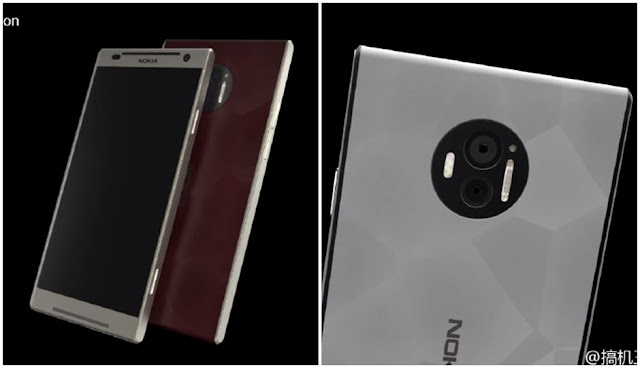
Nokia C1 renders leak ahead of launch, hints at 4GB RAM and dual rear cameras
Is Nokia working on its own AI assistant for smartphones? Nokia is planning its return to the smartphone industry with two new flagshi...
-
 As the Cricket World Cup closes in, Disney India has launched the official video game of the ICC Cricket World Cup 2015 for PC users, and ...
 -
 WhatsApp has reportedly rolled out the voice calling feature to users through invitation only. Mobile messaging service WhatsAp...
 -
 Sigma DP2 Quattro Review Too niche for comfort PROS upto 39MP interpolation Sharp Images Good build quality Fov...