Showing posts with label Windows 10. Show all posts

Friday, October 23, 2015

#90 Speed up your Windows 10 with these three simple methods

These handy tips will give you faster startup, start menu access and faster shutdown in Windows 10


Are you using the new operating system Windows 10 on a brand-new PC or have you upgraded it in your old machine?

Want a faster computer? Provided below are three easy ways to speed up your Windows 10.


1. Faster Startup

Every time when the Windows boots up, you are asked to provide a password by Microsoft for security purpose. However, don’t you think it should be left to the users to decide if they want to password-protect their PCs? One would think so.

Considering the hoops that one has to jump through to disable the startup password, Microsoft clearly feels very strongly about it. Even though you may be a fast typist, stopping to enter that password costs you at least a few seconds per boot. To save those precious seconds, you can follow the steps below:

Step 1: Type netplwiz inside the Search field and press Enter.

Step 2: Uncheck the box next to Users must enter a username and password to use this computer. Then click Apply and enter your password to approve the change.

That’s it. Say goodbye to startup password.

2. Faster Start Menu

If Windows 10’s smart new Start menu is slow to load on the system, this means that you have a older machine. The reason for slow loading could be animation, and animation consumes horsepower. However, thankfully, you can turn off that animation for speedier access to Start. Here’s how:

Step 1: Type sysdm.cpl in the Search field and then press Enter.

Step 2: Click on the Advanced tab, and then the Settings button in the Performance section.


Step 3: Uncheck the box for Animate windows when minimizing and maximizing, and then click Apply.

It’s done. The Start menu should now snap to life a bit faster.

3. Faster Shutdown

The shutdown process in Windows 10 requires three clicks and a menu. Here’s how you can make the shutdown process faster.

All you need to do is right-click on any open space on the desktop, then click New > Shortcut. A Location field will appear on the screen. Paste the following in the location field:

%windir%\System32\shutdown.exe /s /t 0

Then, click on Next and complete the shortcut setup.

The article helps you? Tell us in the comments below.

#84 Microsoft Finally Changes Irritating Rules of Free Windows 10 Upgrade

Riding on the shoulders of its Free Windows 10 slogans, Satya Nadella has managed to convince about 110 million people to install the Windows 10 operating system on their PCs.

PowerTech & Powertechmation: Microsoft has finally responded to the user complaints regarding the irritating rules of the free Window 10 upgrade. With the upcoming Windows 10 builds, you can use your Windows 7, 8 and 8.1 activation keys.

After tons of complaints and user feedbacks, Microsoft has finally decided to change the free Windows 10 upgrade rules. The smooth Windows 10 upgrade process has been made smoother by allowing you to use your Windows 7, 8 and 8.1 activation keys.

In an official blog, Windows and Device Group Vice President Gabe Aul has revealed the information about an upcoming Windows 10 build that will allow you to activate your free Windows 10 copy using your existing Windows 7, 8 and 8.1 keys.


But, how to do this?

On the blog, Gabe explained that if you install this upcoming Windows 10 Insider Preview on your PC and it doesn’t activate on its own, “you can enter the product key for Windows 7, Windows 8 or Windows 8.1 used to activate the prior Windows version on the same device to activate Windows 10.”

On the blog, Gabe explained that if you install this upcoming Windows 10 Insider Preview on your PC and it doesn’t activate on its own, “you can enter the product key for Windows 7, Windows 8 or Windows 8.1 used to activate the prior Windows version on the same device to activate Windows 10.”

You can perform this activation by going to Settings > Update & security > Activation and selecting Change Product Key.


Giving the Windows users another great news, Gabe said that anyone looking to perform a clean install of Windows 10, would be able to use these Windows 7 and Windows 8 keys during the installation process.

Why is this change so huge?

This change has made the lives of Windows users easy as installing a clean Windows 10 OS is now a better option. Earlier, you had to upgrade your Windows 7, 8 or 8.1 OS to Windows 10 using Windows upgrade, followed by the second step of performing the clean install using the bootable ISO images.

Now, Microsoft has shortened this clean install process as you just need to download the upcoming Windows 10 ISO and perform a clean install right away using the existing Windows keys.

Microsoft explains: “If you do a clean install of Windows 10 by booting off the media, you can also enter the product key from prior Windows versions of qualifying devices during setup.”

Have something to add or any doubts regarding Windows 10 upgrade? Tell us in the comments below.

Thursday, October 22, 2015

#82 Intel Launches Its First-Ever Complete NUC Windows 10 Mini PC

Intel is moving beyond making the super powerful Skylake processors for others, instead the world’s largest semiconductor chipmaker has launched its first ever complete mini PC, the Grass Canyon NUC for the low-end users.

PowerTech & Powertechmation: Intel has launched the best version of its mini PC series. The Grass Canyon NUC comes with Windows 10 and 2GB RAM and costs $255. Know everything about it here.

The new NUC mini PC has reinstalled Windows 10 which is the biggest refurbishment in the Intel NUC mini-series. The earlier models in the NUC lineup came sans OS and RAM which made many buyers hops on to other options. However, with everything in place now and the price as low as $255, Intel Grass Canyon NUC Windows 10 mini PC is a complete package.


Intel’s latest offering comes with a quad-core Intel Pentium N3700 Braswell processor, 2GB DDR3l RAM and 32 GB eMMC on-board storage and equipped with a drive bay for additional HD/SSD have been provided as well.

These features are customizable too. The RAM can be extended to up to 8GB in the Grass Canyon NUC and the user has the freedom to choose any of Windows 8, Ubuntu, Linux Mint and Fedora, OpenSUSE and Android as the operating system.

The tiny PC with a mighty package delivers the same performance and visuals as the full sized tower. Additional features such as a 8-channel audio, built-in WiFi, and Bluetooth along with HDMI and wireless display capabilities makes NUC5PGYH an excellent home theater PC.


The Intel Grass Canyon NUC mini PC is available on Amazon and ready to ship. The tiny powerhouse is not the cheapest, but it is a better option for the users who were considering the previous models of the Intel NUC mini-series which cost around $180.

Monday, October 19, 2015

#67 How to Stop Windows 10 From Spying on You

Windows 10 is now out in the wild and people are installing the “best Windows yet” on their personal computers. For those who were feeling left out because they didn’t reserve the upgrade, or some other issue, Microsoft even released a tool install Windows 10 easily. According to the latest reports, Windows 10 are now being installed on 16 PCs per second rate and the data being transferred is just mind-boggling.


Apart from all the good features of Windows 10 and painless upgrade process, the privacy policies of Microsoft and Windows 10 spying needs to be frowned upon. According the constant digging being done by the security experts, Windows 10 is quick at tracking your behaviour and uses your personal information for improving its targeted ads. Some of you won’t mind sharing your email, contacts, and messages with Microsoft, but many of you won’t like this privacy breach.


Today, I’ll tell you how to tweak your Windows settings to hide yourself from the prying eyes of Microsoft and Windows 10 spying.


In Windows 10 privacy settings, you get 13 different screens that you need to scan. Take a look at them and disable as much concerning settings as you can. Most of the settings could be found under the General category. Take a look, tweak some settings and you’ll start feeling more comfortable using Windows 10.


Second Step: Cortana


Cortana is one of the best features of Windows 10, but it doesn’t handle your data cautiously and assists in Windows 10 spying. Also, with Cortana, some tiny percentage of your CPU power is always dedicated to listening your “Hey Cortana” command. You can just search “Cortana Settings” in the desktop search and disable Cortana to opt out of its suggestions. This will make your desktop search confined to a PC search that gives you results from your Windows 10 PC and settings.


Third Step: Use a local account


Some of you would find it too much as it will restrict you from using online services like One Drive and Windows Store. But, given the Windows 10 spying concerns and data Microsoft extracts to serve you its services, this step is justifiable. Just type “Manage my accounts” in desktop search, or follow Settings – Accounts, to find the options.

Final Step : Opt out of ads


With Windows 10 spying, Microsoft is becoming the new Google of data theft and using the same for serving you advertisements. For hitting the final nail in the coffin, you need to click on this link and visit Microsoft’s website. This gives you options to opt-out of the personalized ad that Microsoft intends to serve you.


I hope you found this how to stop Windows 10 spying article helpful, and now you feel more comfortable using your Windows 10 PC.

Tuesday, March 31, 2015

#47 Microsoft launches Project Spartan for Windows 10 Technical Preview

Windows 10 Tech Preview build 10049 includes Project Spartan, the company's new browser. 


Microsoft has rolled out its “Project Spartan,” the new browser for Windows 10, for the latest Windows 10 Technical Preview build for PCs. The new browser brings a slew of new features, interface and integration with digital assistant Cortana.


“In this preview, you will see a bold new design for Project Spartan – one that is streamlined and puts the focus on the page, not the browser. This is part of our vision for a browser that doesn’t visually interfere with your life on the Web, but supports it. You will also see some of the features that we demo’ed back in January and we hope you’ll love them,” points out Microsoft in a detailed blog post.


As said above, Project Spartan brings Cortana integration. The personal assistant provides additional information while making browsing easier, staying in the background. It comes with inking capabilities, enables you to write or type directly on the page, comment on what’s interesting or clip what you want – then easily share this “Web Note” via mail, or a social network. The Spartan features a new rendering engine is built around the idea that the Web “just works,” while being faster, more secure and more reliable.


“It’s important to note we’ll have more features and many improvements coming to Project Spartan before we make it broadly available. This preview is NOT a polished, ready-for-everyone release. For Windows Insiders, we’re excited to make Project Spartan available for your feedback, only a short time after we made it available for use internally at Microsoft,” points out Microsoft. 


Meanwhile, Windows 10 Technical Preview Build 10049 is now available. The latest build includes a slew of fixes along with Project Spartan.


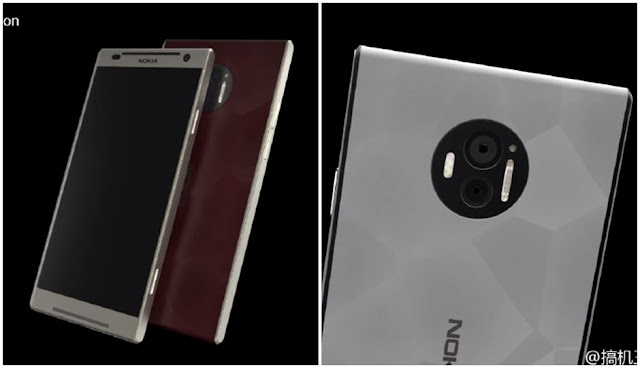
Nokia C1 renders leak ahead of launch, hints at 4GB RAM and dual rear cameras

Is Nokia working on its own AI assistant for smartphones? Nokia is planning its return to the smartphone industry with two new flagshi...