Showing posts with label Linux. Show all posts

Sunday, October 25, 2015

#98 Linux Ubuntu 15.10 Finally Released, Download Year’s 2nd Biggest Release

PoweTech & Powertechmation: Linux Ubuntu 15.10, this year’s second Ubuntu release is finally here. You can find the download link below or check for the update on you already Ubuntu 15.04 running system.

Canonical has finally unwrapped the Linux Ubuntu 15.10 distro. Ubuntu 15.10 is also referred to as the Wily Werewolf and it follows the Ubuntu 15.04 Vivid Vervet release of April 23.


The Linux Ubuntu 15.10 comes with the latest OpenStack cloud computing platform and two new Canonical technologies: Autopilot tools for managing OpenStack deployment and LXD for containers.

The Linux Ubuntu 15.10 is based on the Linux kernel 4.2 that was unveiled on August 20th. Ubuntu 15.10 comes with new security and bug fixes and 9 months support.

You can grab the official ISO image of Linux Ubuntu 15.10 from the links below or look for the upgrade in already running Ubuntu 15.04.


Do you like new Ubuntu 15.10? Comments below.

Saturday, September 26, 2015

#60 World’s First $9 Computer CHIP is Shipping Today


If you found $35 a lot to spend on a Raspberry Pi for a computer, you would have loved the $9 computer CHIP. CHIP houses a 1GHz All winners R8 single-core processor, 4GB on-board storage and 512MB DDR3 RAM coupled with WiFi and Bluetooth built-in.


Earlier this year, Next Thing Co. launched a kick-started campaign to fund this project, and now its team has announced that the first CHIP computers are shipping to the Kernel Hacker Backers.


The world’s first $9 computer is an innovative open hardware project, powered by an open source software. The specifications of an entry-level computer and the price tag of $9 makes it one the best platforms for developers.


Currently, Next Thing Co. is shipping the Alpha CHIP and its shipping without any firmware. However, there are detailed instructions for flashing the software onto the CHIP.


If you’ve backed the project earlier at the Kernel Hacker Backer level on Kickstarter, you’ll be getting two CHIP computers. The second batch of CHIP computer will ship in mid-October.


Apart from the earlier mentioned hardware specifications, CHIP features a composite video port, a USB port, a micro USB port and other developer pins for hooking up hardware.


If you’ve missed the chance of grabbing a CHIP on the Kickstarter campaign, you can pre-order CHIP from the Next Thing Co. website.


Saturday, September 19, 2015

#51 Microsoft working on Azure Cloud Switch, a Linux-based OS

The operating system is not for PCs and laptops, and is aimed towards users of enterprise and cloud services 

Microsoft is working on a Linux-based operating system, the Azure Cloud Switch (ACS). The announcement was made through an official blog post by Kamala Subramaniam, Principal Architect of Azure Networking. As per the post, the ACS is a “cross-platform modular operating system for data center networking built on Linux.” 


The blog post mentions that there are various types of switch hardware platforms available in the market. It states the difficulty to configure hardware with completely different types of software. To tackle this, it has come up with the Linux-based ACS. It will provide a unified platform for running different types of networking devices with the same software. It will also enable the company to debug more efficiently. Further, the ACS believes in Open Networking, and this will enable it to "use and extend" Open Source, Microsoft, and Third Party applications. The blog post concluded by mentioning that Microsoft decided to talk about ACS in public because the company believes in the approach of separating the switch software from switch hardware to gain popularity in the networking industry.

The software is not aimed at general PCs and laptops, and only aimed at enterprise and cloud-based services. It is not the first time that Microsoft is using rival technologies. Earlier this year, the Redmond-based company had announced its partnership with Cyanogen, where the custom ROM-maker will distribute various Microsoft apps and services. Additionally, it was reported yesterday that Cyanogen is reportedly working on deeper integration of Microsoft’s virtual assistant, Cortana, into Cyanogen OS. 

Friday, February 27, 2015

#21 How to Check Computer Information

Hello friends, today I am showing how to check computer problem (or software problem). 

Knowing the specifications of your computer will help you make informed decisions when purchasing new hardware and software. You can check your system specs in every operating system, regardless of how old it is or what system it's on. All you need is to know where to look.


For windows xp


Method 1 : Windows XP (using MsInfo32)


Step 1- Click Start > Run 


Step 2- Type MsInfo32 


Step 3- Find the System Summary on the main page, it includes the principal information about your computer(System , physical memory , virtual memory , BIOS version ...) 


Step 4- Find information on your hardware on the "Hardware resources" tab.


Step 5- Find information about codecs (video, audio, other multimedia ... etc) installed in the "Components" tab


Step 6- Look for information on drivers and services in the "Software Environment" tab.


Step 7- Find information about your Default Navigator "Internet Explorer" in the "Internet Settings" tab.


Step 8- Look for MS Office applications' information on the "Office Applications" tab.


Method 2 : Windows XP (using DxDiag)

  
Step 1- Click Start > Run.


Step 2- Type Dxdiag.
  • You must have any version of DirectX installed on your system.


Step 3- Find information about System , Display , Sound , Network, etc. in their appropriate tabs.


For Windows 7


Method 3 : Windows 7


Step 1: Use this method for Windows 7


Step 2: Go to Taskbar > Control Panel> System. 


Step 3: It provides Information about the system (It's nearly like Windows XP).


Step 4: Use the DirectX Diagnostic Tool as mentioned in the prior section. 


For Windows Vista


Method 4 : Windows Vista


Step 1: On the Taskbar : Click "Start" > All Programs > Accessories > System Tools > System Information.


Step 2: Follow the same steps as Windows 7.


For Linux Based Systems


Method 5 : Linux 


Step 1: Go to Applications > Accessories > Terminal (Alt+F2 > type gnome-terminal)


Step 2: Type one of the following commands :

  • finger username : System info about a user. For example, "finger root"   

  • cat /proc/version: Linux version and some information.

  • cat /proc/filesystems: Show the types of filesystems currently in use .

  • free: Memory info (in kilobytes).

  • ps axu | more: List all the processes currently running, even those without the controlling terminal, together with the name of the user that owns each process.

  • You can also : Type lshw > lshw-html > KinfoCenter. 
For Mac OS X


Method 6 : Mac OS X


Step 1: Open Apple Menu.


Step 2: About this Mac.


Step 3: You will find information about Version, Processor and Memory.


Method 7 : Microsoft Help Center


Step 1: Hold and press Start + F1 on your keyboard.

 
Step 2: Click the Performance and Maintenance. 


Step 3: Click on Maintaining Your Computer. This will be on the left task panel. 


Step 4: Click Get Information About Your Computer on the right pane.


Step 5: View General System Information about your computer. It will tell you it is processing. 


Step 6: When processed, you will find the computer's information.  


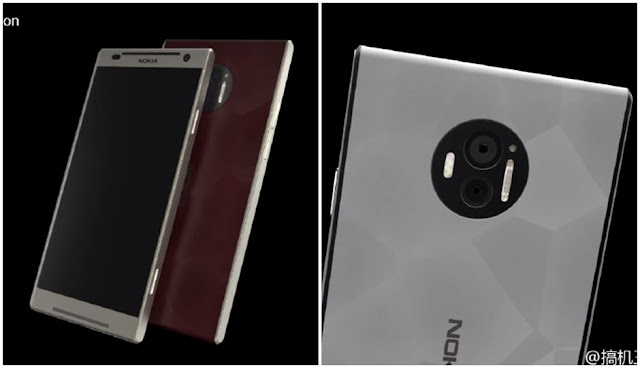
Nokia C1 renders leak ahead of launch, hints at 4GB RAM and dual rear cameras

Is Nokia working on its own AI assistant for smartphones? Nokia is planning its return to the smartphone industry with two new flagshi...