Showing posts with label Microsoft account. Show all posts

Friday, October 23, 2015

#92 Here is how much a 1TB Surface Book will cost you

Interested in a 1TB Surface Book? If yes, then you’d better start saving up real fast


Microsoft’s Surface Book is the company’s very first attempt to target the notebook market, and the company has done so with a 2-in-1 hybrid machine that comprises up of impressive hardware, though it will still cost you. The starting model of Surface Book will cost you $1,499, and features Intel’s 14nm Skylake Core-i5 processor, 8GB of RAM and 128GB of storage. The added benefit of using Intel’s 6th generation processors is that users will get extended battery life thanks to their thermal and power efficiency.

However, if you want to experience the best in notebook performance from Surface Book, then you will be required to spend more than twice the starting price that has been listed above. Why? Because the highest performing model of Surface Book is going to cost you $3,199. If you think that the price is far too high for a 13.5 inch notebook, let us a take a look at the hardware that is present this model.

First off, you are getting a Core-i7 processor, which has more threads compared to a Core-i5 CPU. Also, you will have 16GB of RAM present, and that is twice the amount that you got from the starting model of the notebook. However, last but certainly not least, you will have a whole terabyte of storage, which is going to be a killer hardware component for users who have a tendency of using their storage up at a very fast pace.

Now, the most expensive model of Surface Book features very impressive hardware, but perhaps the primary difference between the $3,199 one and the $1,499 is that the former has an NVIDIA GTX950M mobile graphics chip present inside it. Naturally, you will be able to engage in games, although you will not be able to afford to enable every graphical setting since the GPU is not that powerful enough compared to other chips. However, you will still be able to run applications that require a lot of GPU power, and for that, you will be required to spend a lot more.

The 13.5 inch notebook has a resolution of 3,000 x 2,000 pixels and you will receive a Surface Pen with the product too. If the price is far too expensive, then you can always wait later down the road, when Microsoft announces its successor, so hopefully, it will become cheaper by then.

Article is interested? Comments below

Friday, March 20, 2015

#43 How to Use SkyDrive

Cloud computing means using off-site computer infrastructures that can be leased or freely used to provide for computer requirements of individuals and organizations. That infrastructure includes all resources of an in-site computer facility; that is, processors, physical memories (RAMs) and storage known as drives.


It helps, as is believed, to reduce costs of maintenance and upgrading of in-site facility lower on the idea of use it when you need and use it more when you need more.


Moreover, you are not attached to your fixed IT facilities and can have access to required resources on the go: on a variety mobile device operating systems, and smartphones. One part of those resources, drives, comes to be more handy for individual users. Microsoft SkyDrive is among the most important ones.


STEPS


Step 1:


Sign in using your Microsoft account.

  • If you do not have an ID, one free will be offered to you to sign up and join. Just go to windows.live.com Windows Live


Step 2:


Select your desired ID. In the next stage you have the option to choose your ID.

  • That could be at the "live dot", "outlook dot" or "hotmail dot" followed by your country URL extension. In the US it follows by "com" only.


Step 3:


Follow a simple procedure to finish getting your ID.

  • Now you are in your personal "outlook" page.

  • Small dialogue shows finishing update. At any time you can launch SkyDrive by Clicking on "Open your SkyDrive folder."


Step 4:


Look at the range of services available.


Step 5:


Go to top left corner "Outlook"

  • From the drop down menu, select "Skydrive"


Step 6:


Observe that it immediately creates your sky drive on the cloud.

  • You have a place holder for your personal documents, pictures and public items. At the top there are options for creating on-line (that is, on-cloud) Office documents for productivity. Please also refer to Back Up Your Important Files Using Hotmail SkyDrive.

  • Click on the "Get SkyDrive apps"


Step 7:


Look at the different flavours of SkyDrive available for different devices.

  • That helps you to have access to your cloud storage on the SkyDrive from different pieces of the device you might use at any place.
  • In the next stage click on "Download the desktop app."


Step 8:


Look at the bottom of your Browser.

  • Allow the install to "Run."
  • Installation proceeds.


Step 9:


Click on "Get Started" button.

  • Fill the form according to your acquired Microsoft Account.


Step 10:


Note that the "cloud hard disk" has been installed on your computer.

  • There is no need to change its location on a safer place in your computer. No failure on your computer will touch that drive; unless you delete its contents.


Step 11:


Click on "Next" button

  • Update your other device pieces in sharing SkyDrive.


Step 12:


Click on "Done" button.

  • Your SkyDrive is on your device.


Step 13:


Click on the small caret on the quick launch.

  • It shows the hidden icons; among them SkyDrive icon. Moving the green line means SkyDrive being updated.


Step 14:


Utilize your SkyDrive to share and team work.

  • Among your documents you have a place for "Public" files. Put some files there. Open the "Public" to see them. In the Demo picture, there are two files.

  • One is actually SkyDive executable file that you can download and run to install SkyDrive. In the demo it is shown to the reader that it is even possible to upload exe files in the SkyDrive. It is important for the team works to have such a capacity for beta testing and other purposes.


  • Another file is just a notepad. It is a draft of this article to back it up.


  • Select this one by ticking the box in front of its name. If you like to embed it in your Blog or other Internet pages, click on "Embed" on the right side pane to get the embedding HTML code.


  • If you like to share it, then click on "Share" in the right side panel.


Step 15:


Look at the widget that opens. It has different options.

  • You can send an email as a link to this file.

  • You can post it to Facebook or Tweeter or LinkedIn.

  • A sharing link could allow people only "View" your file without being able to modify it.


  • A sharing link could allow both "View" and "Edit" of the file.


  • Besides, being a "Public" file allows people to search it and if found through the Internet search engines to be viewed by the public. You can put your file in non-public folders if you want it to be of access of you-only or you and your team-only.


  • For any reason, you can shorten the link address to be more digestible, by clicking on the "Shorten" button. You can put that address in your browser right now and find out a draft of this article.

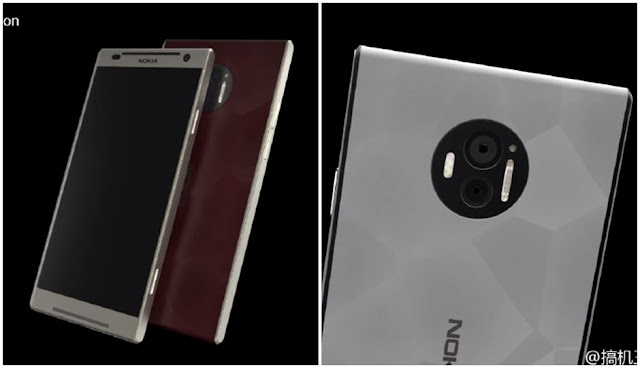
Nokia C1 renders leak ahead of launch, hints at 4GB RAM and dual rear cameras

Is Nokia working on its own AI assistant for smartphones? Nokia is planning its return to the smartphone industry with two new flagshi...